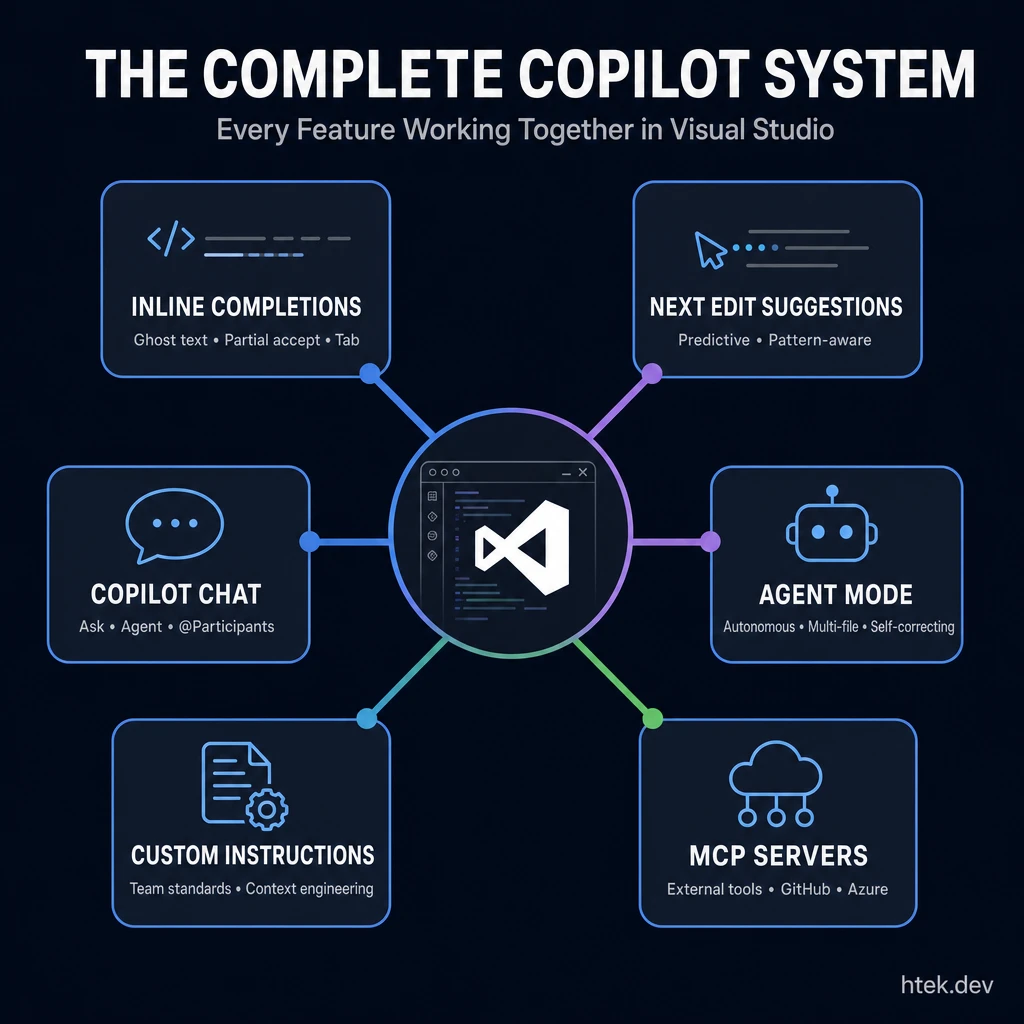
Most Developers Are Stuck in First Gear
Here’s a stat that should bother you: GitHub reports that developers accept roughly 30% of Copilot’s suggestions. That means 70% of the time, the AI is generating something you reject. But here’s the thing — acceptance rate isn’t the metric that matters. The developers extracting the most value from Copilot aren’t just accepting more completions. They’re using an entirely different set of features that most people don’t even know exist.
Visual Studio’s Copilot integration has quietly evolved from a glorified autocomplete into a full agentic coding system. Agent mode, MCP servers, Next Edit Suggestions, custom instructions, prompt files, code review, model selection — it’s a deep toolkit that most developers barely scratch. I use every one of these features daily, and the productivity difference is not incremental. It’s a step function.
This guide covers everything. Not a surface-level overview — every feature, every shortcut, every configuration option, and the specific patterns I use to get the most out of each one. Bookmark it.
🎬 Companion video: I recorded a full 46-minute walkthrough where I scaffold an entire C# solution from scratch with Copilot’s agent mode — from blank slate to working issue tracker with API integration, test coverage, and custom instructions. The screenshots and quotes throughout this article come directly from that session.
Getting Started: The 5-Minute Setup
You need Visual Studio 2022 version 17.14 or later for the full feature set. Visual Studio 2026 adds syntax-highlighted completions and cloud agents, but 17.14 gets you agent mode, MCP, NES, and everything else that matters.
- Open Extensions > Manage Extensions and confirm GitHub Copilot is installed
- Click the GitHub Copilot badge in the upper-right toolbar → Open Chat Window to Sign In
- Sign in with your GitHub account. No subscription? Select Sign up for Copilot Free — you get a monthly quota of completions and chat interactions at zero cost
Once signed in, open View > GitHub Copilot Chat. You’ll see the Ask / Agent mode dropdown at the bottom. If it’s missing, check Tools > Options > GitHub > Copilot > Copilot Chat > Enable Agent mode in the chat pane.
For the full getting-started walkthrough, see Microsoft’s official guide.
Inline Completions: The Foundation You Need to Master
As you type, Copilot renders ghost text — gray, lower-opacity suggestions that can be a single token, a full line, or an entire method body. In Visual Studio 2026 Insiders, these completions now appear with full syntax highlighting (variables, keywords, strings in distinct colors), making them dramatically easier to evaluate at a glance.
The Keyboard Shortcuts That Matter
| Action | Shortcut |
|---|---|
| Accept entire suggestion | Tab |
| Dismiss suggestion | Esc |
| Next suggestion | Alt + . |
| Previous suggestion | Alt + , |
| Accept word-by-word | Ctrl + Right Arrow |
| Accept line-by-line | Ctrl + Down Arrow |
| Trigger suggestion manually | Alt + . or Alt + , |
The partial accept shortcuts are the game-changer. Instead of accepting or rejecting an entire suggestion, Ctrl + Right Arrow lets you cherry-pick word by word. Copilot suggests a five-line method body but gets the variable name wrong on line three? Take the first two lines word by word, then type your own. I use partial accept more than full Tab accepts at this point.
Alt + . and Alt + , for cycling through alternatives is equally important. Copilot generates multiple ranked suggestions — the first one isn’t always the best. I’ve found the second or third option is often more idiomatic, especially for LINQ queries and async patterns.
Tuning Completions to Your Style
The defaults are conservative. Here’s what I change:
| Setting | Path | What to Change |
|---|---|---|
| Debounce delay | Tools → Options → Text Editor → Inline Suggestions → Preferences | Enable “Show only after a pause in typing” — prevents suggestions from flashing mid-keystroke |
| Manual mode | Tools → Options → Text Editor → Inline Suggestions → General | Set to “Manual” if completions distract you, then trigger with Alt + . when ready |
| Accept key | Inline Suggestions settings | Switch from Tab to Right Arrow if Tab conflicts with your indentation workflow |
| Font/colors | Tools → Options → Environment → Font and Colors → “Code Completions” | Adjust opacity, font, and colors to your preference |
Comment-First Development
This is the single highest-ROI pattern for completions. Write a descriptive comment before the function signature, and Copilot uses it as strong context:
// Calculate the monthly payment for a loan using the amortization formula.
// Accounts for compound interest and returns the payment rounded to 2 decimal places.
public decimal CalculateMonthlyPayment(
    decimal principal, decimal annualRate, int termMonths)
{
    // Copilot generates a high-quality implementation here
    // because the comment gave it clear intent
}
Without the comment, Copilot guesses. With it, Copilot understands. I write comments first for every non-trivial method.
Next Edit Suggestions: Copilot Predicts Where You’re Going
Next Edit Suggestions (NES) is the feature most developers haven’t discovered yet. While completions suggest code at your cursor, NES watches your editing patterns and predicts where your next edit should be and what it should contain — potentially lines or even pages away from where you’re typing.
Rename a parameter from userId to accountId in a method signature? NES puts an arrow in the gutter next to the line where that parameter is used, showing the matching rename. Hit Tab to jump there and accept. Hit Tab again to chain to the next occurrence. You can ripple a rename through an entire file without touching Find & Replace.
Enabling and Configuring NES
- VS 2022 (17.14): Tools → Options → GitHub → Copilot → Enable Next Edit Suggestions
- VS 2026: Tools → Options → Text Editor → Code Completions → General → Check “Copilot Next Edit Suggestions”
Collapse Mode
If NES feels noisy, switch to collapse mode: the suggestion text stays hidden, and only a small gutter arrow appears. Click it or press Tab to reveal the suggestion. After accepting one, related suggestions auto-expand while unrelated ones stay collapsed. This gives you the predictive power without the visual clutter.
Where NES Shines
- Rename cascades — Change a type, parameter, or variable name once, then Tab through every reference
- Pattern matching — Update one
switcharm, NES suggests the same change for all other arms - After pasting — Paste code from another file, NES suggests adjustments to match surrounding style
- Bug fixes — Fix a logic error (wrong operator, inverted condition), NES finds similar patterns elsewhere
Copilot Chat: Modes, Commands, and Built-In Agents
The Chat window is deceptively simple. It looks like a text box, but it’s actually three interaction systems in one: / slash commands for common tasks, # references for attaching context, and @ agents for routing to specialized domain experts. Understanding all three is what separates a casual user from a power user.
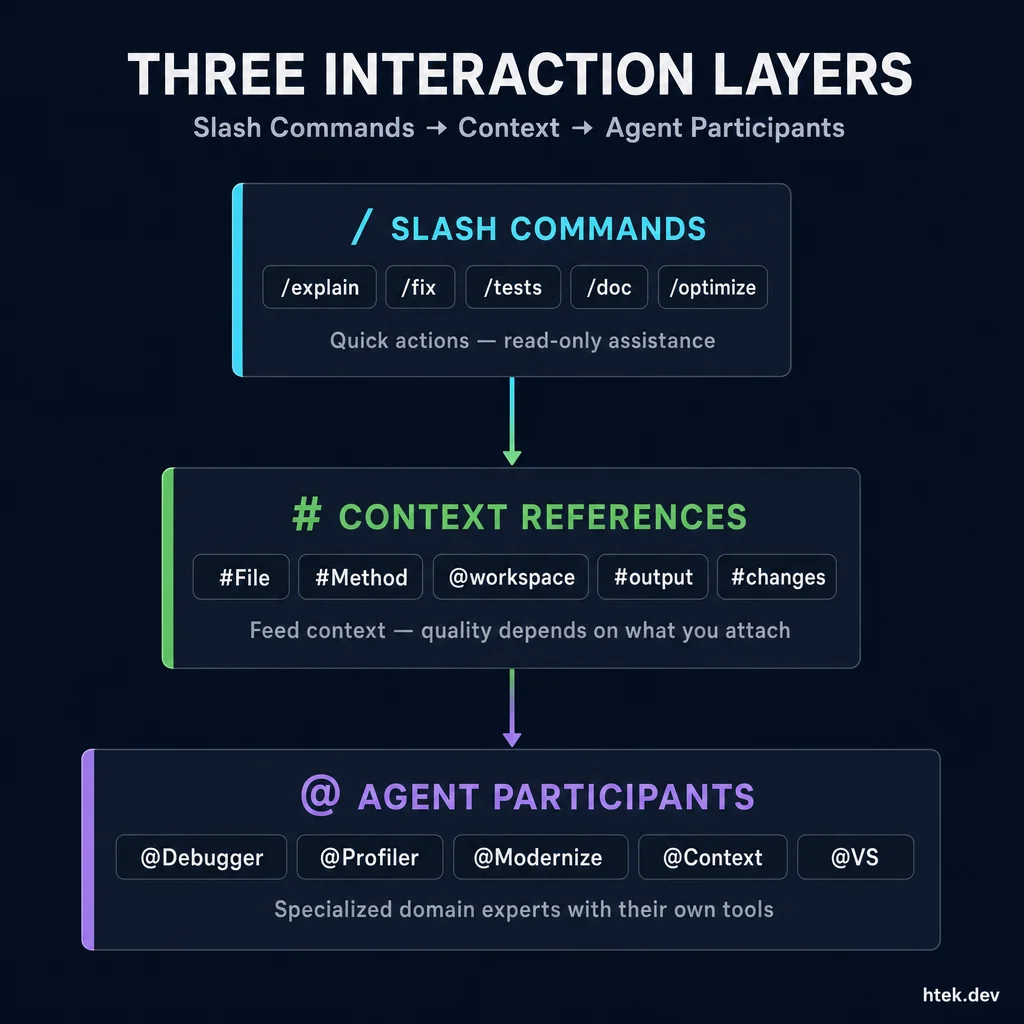 Copilot Chat’s three interaction layers: each adds more capability, from simple commands to full domain-expert agents.
Ask Mode: Your Read-Only Assistant
Ask mode answers questions, explains code, and generates suggestions — but it never touches your files unless you explicitly click Apply. Think of it as a senior developer sitting next to you, answering questions.
The slash commands are the fastest way to interact:
| Command | What It Does | Example |
|---|---|---|
/explain | Explains selected code or a referenced symbol | /explain the ValidateOrder method in OrderService.cs |
/fix | Proposes fixes for errors, warnings, or code smells | Select broken code → /fix |
/tests | Generates unit tests | /tests using xUnit and NSubstitute for the PaymentProcessor class |
/doc | Generates XML documentation comments | Select method → /doc |
/optimize | Analyzes performance, maintainability, reliability | Select a LINQ chain → /optimize |
/generate | Generates code from a description | /generate a retry policy with exponential backoff |
Starting in VS 17.13, slash commands expand to show the full natural language prompt as you type — so you can see exactly what context Copilot will use.
Context Is Everything: The + Button
The quality of Chat’s answers depends entirely on what context you feed it. Use the + button (or # prefix) to attach references:
| Reference | How to Add | When to Use |
|---|---|---|
| Specific file | #FileName.cs | Asking about a particular file |
| Method/class | #MethodName | Questions about specific symbols |
| Entire solution | @workspace | ”Where is this interface implemented?” |
| Images | + button → attach image | Share error screenshots, UI mockups |
| Output window | #output | ”Why did the build fail?” |
| URLs | Paste URL in prompt | Reference external docs or blog posts |
| Git changes | #changes (VS 2026) | “Review my uncommitted changes” |
| MCP resources | # + resource URI | Pull in external data from MCP servers |
Every response includes a References dropdown showing exactly what context Copilot used. Check it — if it’s missing files you expected, add them explicitly next time.
Built-In Chat Participants: The @ Agents
Beyond slash commands and context references, Copilot Chat has a third interaction pattern that most developers overlook entirely: @ agent participants. Type @ in the chat input and a dropdown appears with specialized domain experts — each wired into a different part of Visual Studio’s internals.
| Participant | What It Does | Example Prompt |
|---|---|---|
@Context | Deep context analysis agent — understands your codebase semantically | @Context How does authentication flow through this solution? |
@Debugger | Accesses debugger state, call stacks, variables, breakpoints. Can diagnose and auto-fix failing unit tests | @Debugger Why is this variable null at this breakpoint? |
@Profiler | Analyzes CPU usage, memory allocations, and runtime behavior. Generates BenchmarkDotNet benchmarks and suggests optimizations | @Profiler Why is my API response time slow? |
@Modernize | Upgrades .NET projects to latest versions and helps migrate to Azure. Uses the .NET Upgrade Assistant under the hood | @Modernize Upgrade this project from .NET 6 to .NET 9 |
@VS | Knows Visual Studio itself — settings, features, shortcuts, configuration | @VS How do I enable vertical tabs? |
@workspace | Searches across your entire solution for symbols, patterns, and implementations | @workspace Where is IOrderRepository implemented? |
These aren’t just chat prefixes — they’re specialized agents with their own tools and context sources. The @Debugger agent reads your actual runtime state. The @Profiler agent runs real profiling sessions and interprets the data. The @Modernize agent executes actual project upgrades with the .NET toolchain.
The Profiler Agent deserves special mention. Instead of staring at call trees trying to find bottlenecks, you ask @Profiler to analyze your app. It profiles the code, identifies the hot paths, suggests concrete optimizations, generates BenchmarkDotNet benchmarks to validate the fix, and iterates until performance improves. It’s available in both VS 2022 (17.14+) and VS 2026.
The Debugger Agent in VS 2026 goes even further — right-click a failing unit test in Test Explorer, select Debug with Copilot, and the agent automatically collects context, forms a hypothesis, applies code fixes, runs the test under the debugger, and iterates until it passes. It’s the closest thing to self-healing code I’ve seen in a production IDE.
Agent Mode: The Autonomous Coding Partner
Switch the dropdown from Ask to Agent and Copilot becomes a fundamentally different tool. Agent mode doesn’t just answer questions — it takes action. It reads your codebase, plans an approach, writes code across multiple files, runs terminal commands, detects errors, and iterates until the job is done.
Give it a prompt like “Add input validation with FluentValidation to all public API endpoints in the Controllers folder, and generate xUnit tests for each validator” — and watch it work. It finds the relevant files, generates the validators, updates the controllers, creates test files, runs the build, catches any compile errors, and fixes them automatically.
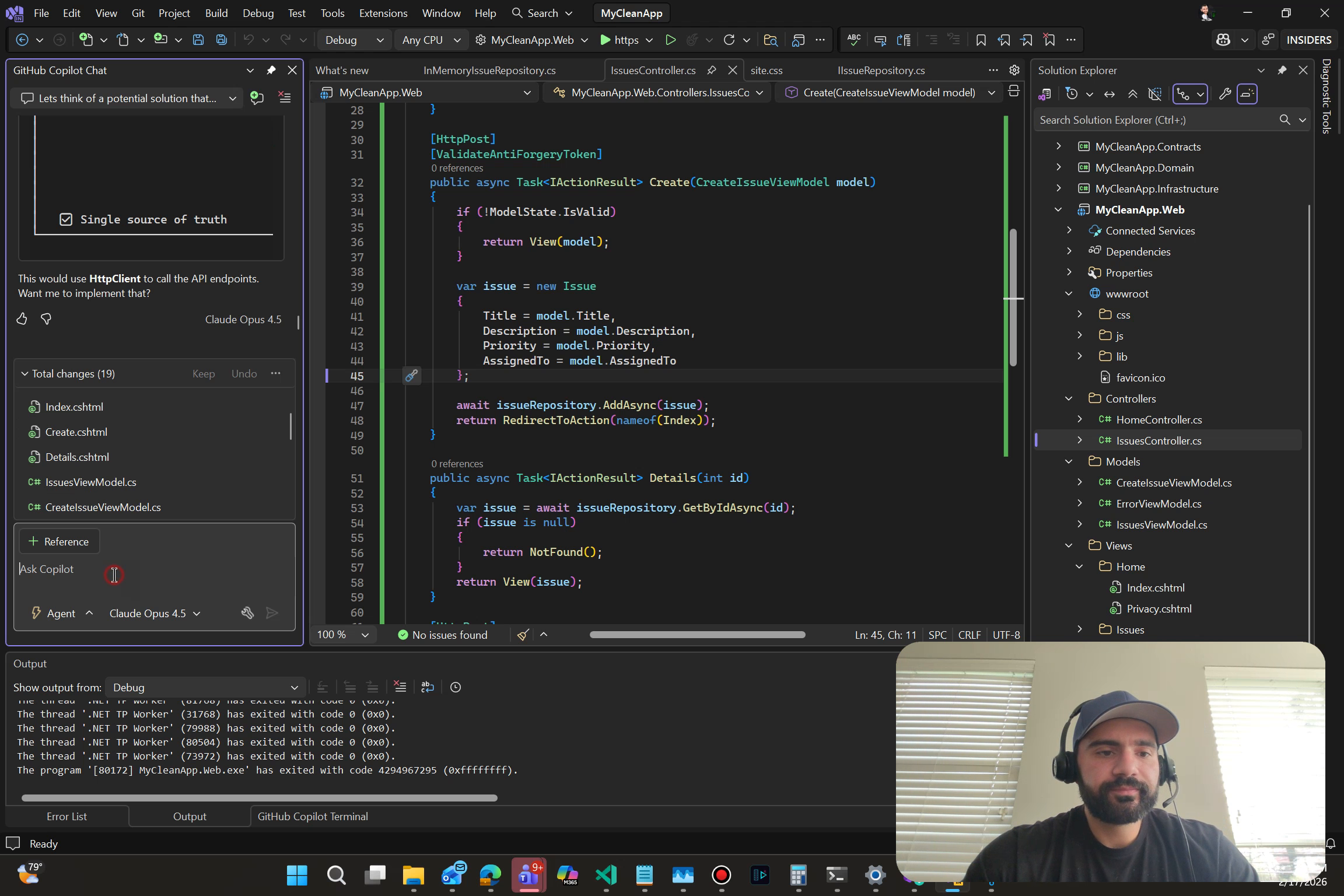
In my walkthrough video, I gave agent mode a single prompt to scaffold a clean architecture solution — domain, infrastructure, web app, API, and test projects — and it wired up all the project references correctly on its own. When a circular dependency error popped up during the build, Copilot immediately diagnosed the issue and moved the contracts to the right architectural layer. The fact that an AI grasps clean architecture patterns better than some developers I’ve worked with is both impressive and slightly terrifying.
“I remember when something would build and it wouldn’t work, it would be so annoying to figure out what’s going on.”
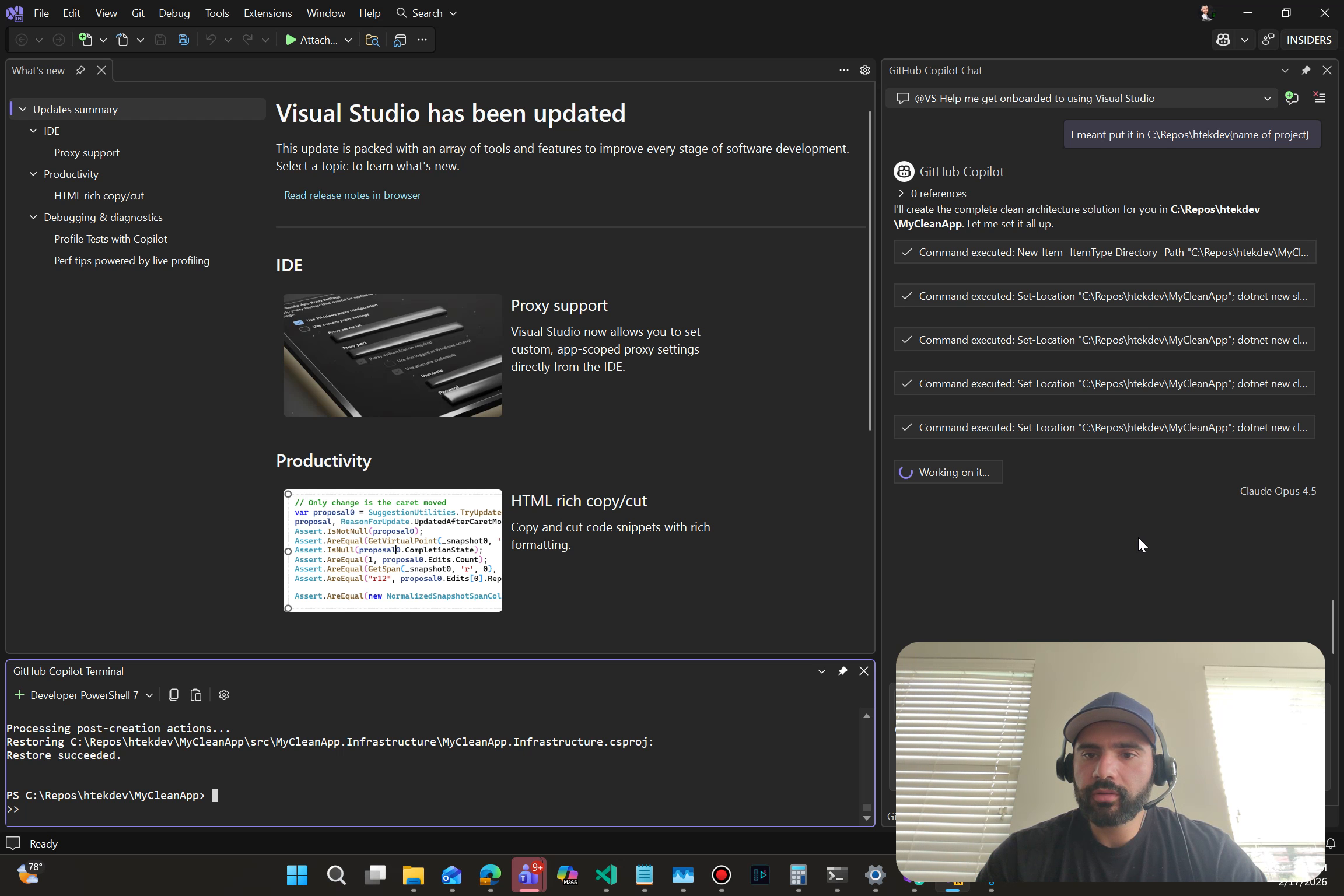
Key capabilities:
- Autonomous file discovery — You specify the goal; agent finds the files
- Multi-file edits — Streamed directly into the editor with per-file Keep / Undo controls
- Terminal commands — Agent can execute
dotnet build,dotnet test, etc. (with your approval per command) - Self-correction loop — Detects syntax errors, build failures, test failures and automatically iterates
- Checkpoint system — Every prompt creates a checkpoint. Click Restore to revert to any previous state
- Tool invocation — Uses built-in tools plus any MCP server tools you’ve enabled
Ask vs. Agent decision rule: Use Ask mode when you want 100% control and read-only answers. Use Agent mode when you want Copilot to drive and you review. If you need MCP tools, agent mode is required.
Scaffolding Entire Solutions From Chat
One of the most underused capabilities is using Copilot to create full project structures from scratch — directly from the chat window. You don’t need to touch File → New Project. The chat hints it right on the welcome screen: @VS Create a new project.
Using @VS for Project Creation
The @VS participant knows Visual Studio’s project system inside and out. Ask it to create a project and it walks you through template selection, configuration, and setup:
@VS Create a new ASP.NET Core Web API project targeting .NET 9 with the name OrderServiceCopilot guides you through the project creation dialog, selects the right template, and configures the options — authentication type, Docker support, HTTPS — based on your prompt. It’s faster than navigating the template gallery manually, especially when you know exactly what you want.
Agent Mode for Full Solution Scaffolding
Where this gets powerful is combining @VS with Agent Mode for multi-project solution scaffolding. Switch to Agent mode and give it an architectural prompt:
Create a clean architecture solution with:
- An ASP.NET Core Web API project (OrderService.Api)
- A class library for domain models (OrderService.Domain)
- A class library for infrastructure/data access (OrderService.Infrastructure)
- An xUnit test project (OrderService.Tests)
- Set up project references: Api → Infrastructure → Domain
- Add Serilog, FluentValidation, and MediatR NuGet packages to the API project
- Create a basic Order entity, IOrderRepository interface, and CreateOrderHandler
Agent mode will create the solution structure, add the projects, configure references, install packages, and scaffold the initial classes — all from a single prompt. You review each file in the Total changes list, keep what you like, and adjust the rest.
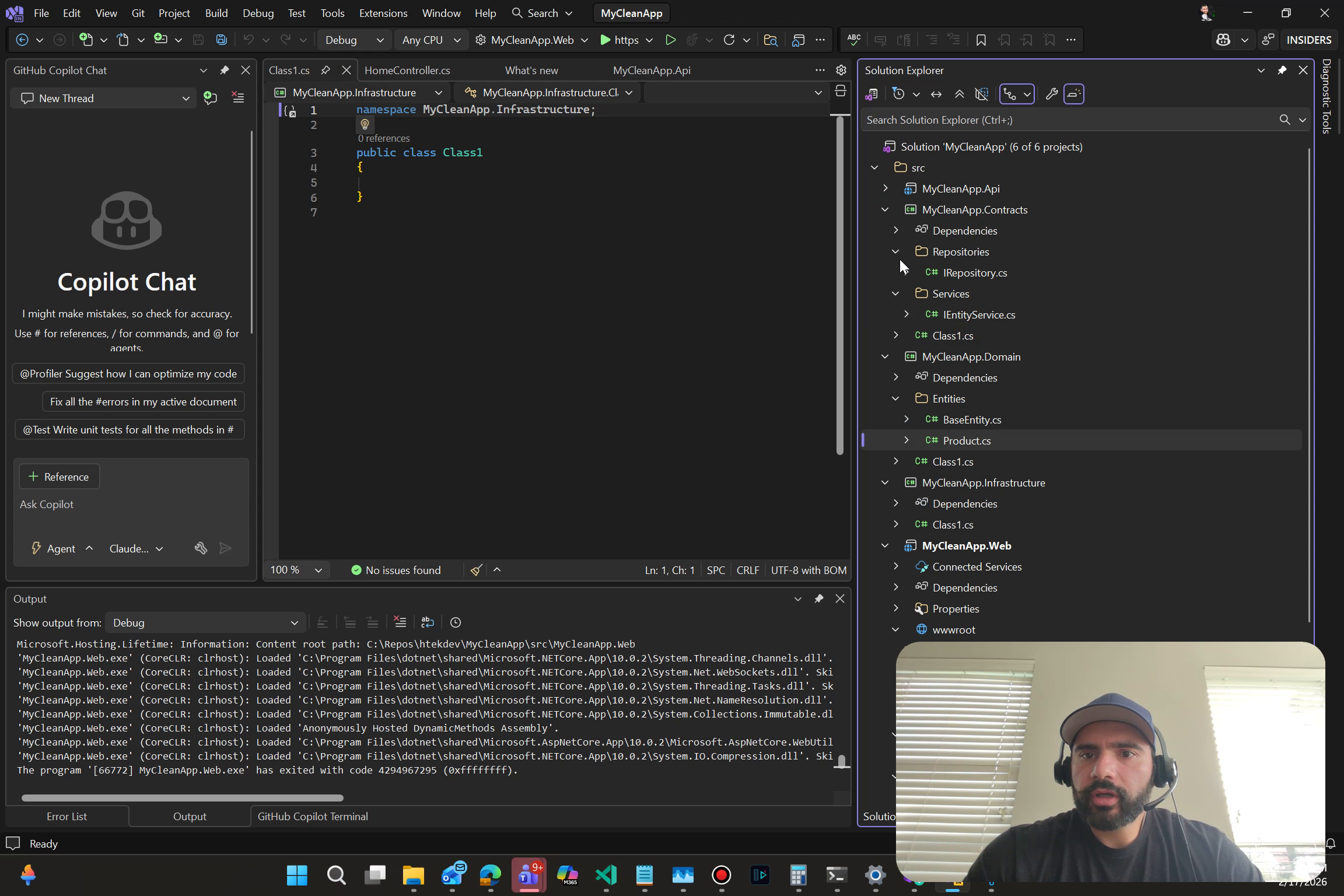
Tips for Better Scaffolding Results
- Be specific about project types — “ASP.NET Core Web API” produces better results than “a web project”
- Name your projects — Copilot picks better namespace conventions when you provide explicit names
- Specify packages upfront — Including NuGet packages in the initial prompt means agent mode wires them into the correct projects
- Reference architecture patterns — Mentioning “clean architecture”, “vertical slices”, or “CQRS” gives Copilot a strong structural blueprint to follow
- Use custom instructions — If your team has a standard solution structure, encode it in
.github/copilot-instructions.mdso every scaffold follows the same pattern
This workflow completely replaces the “spend 30 minutes wiring up a new solution before writing any real code” ritual. I now scaffold new microservices in under 2 minutes and spend my time on the domain logic instead of boilerplate.
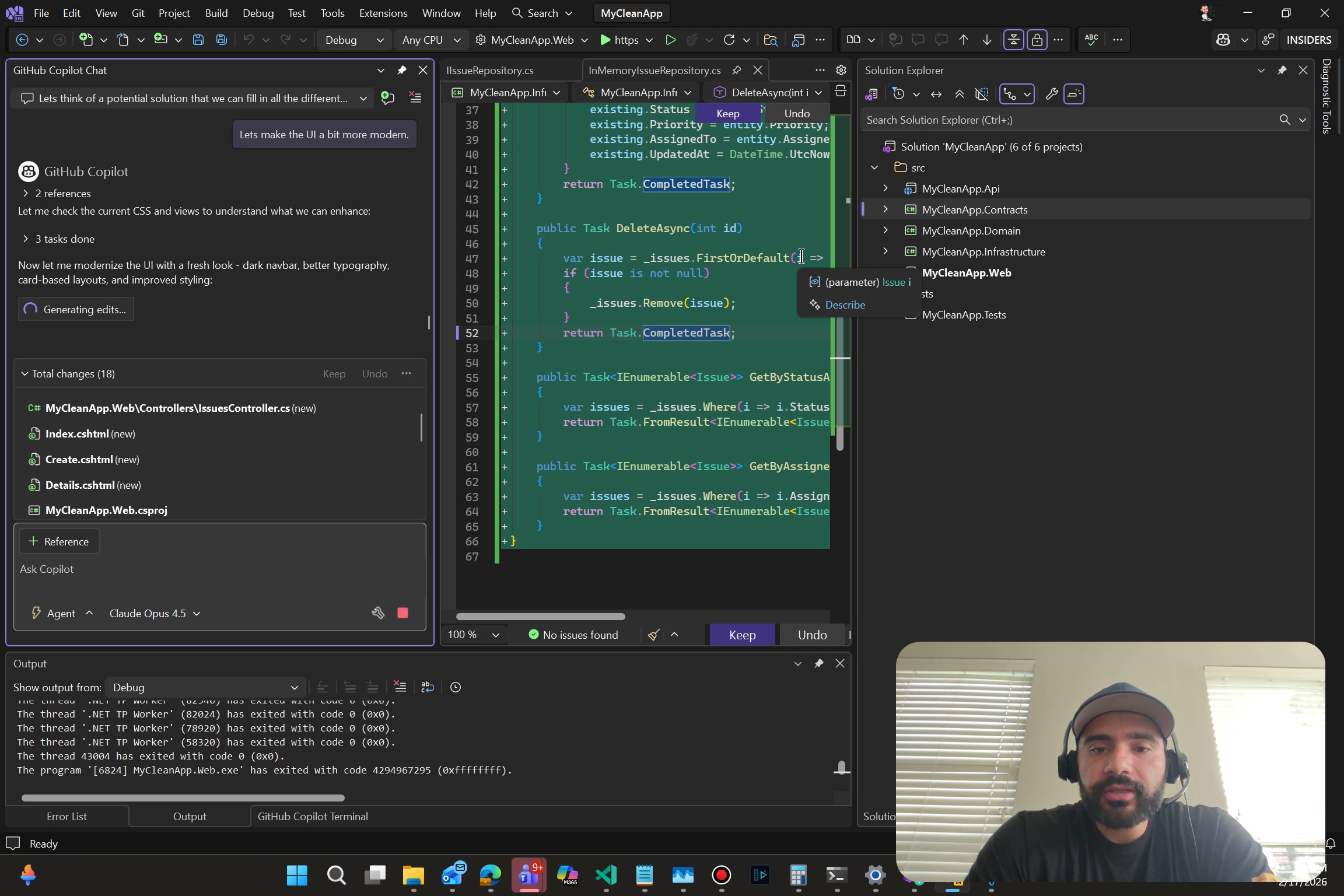
I even asked Copilot to modernize the UI of the scaffolded app, and the transformation was genuinely impressive — it went from a basic default template to something that actually looks like a modern web application, all from a single prompt.
MCP Servers: Extending Copilot Beyond Code
Model Context Protocol is the feature that turns Copilot from a code assistant into a platform. MCP servers let you connect external tools — GitHub, Azure DevOps, databases, Playwright, document converters — and agent mode can invoke them during its workflow.
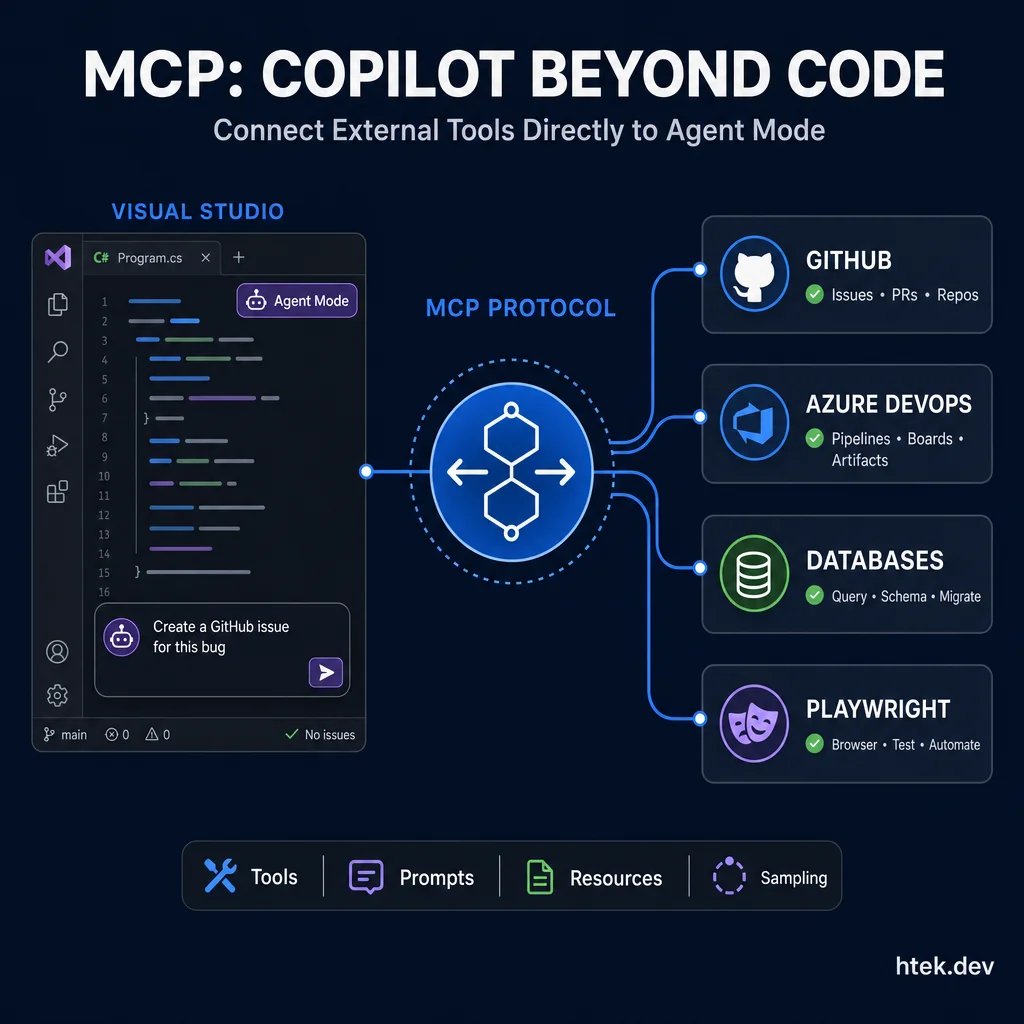 MCP bridges Visual Studio to external tool servers — GitHub, Azure DevOps, databases, and more — all accessible from Agent Mode.
Configuration
Visual Studio discovers .mcp.json files from five locations (checked in order):
%USERPROFILE%\.mcp.json— Global, all solutions<SolutionDir>\.vs\mcp.json— Per-user, per-solution (gitignored)<SolutionDir>\.mcp.json— Repo-level (source controlled)<SolutionDir>\.vscode\mcp.json— VS Code compatibility<SolutionDir>\.cursor\mcp.json— Cursor compatibility
Example: GitHub MCP Server
{
  "servers": {
    "github": {
      "url": "https://api.githubcopilot.com/mcp/"
    }
  }
}
With this enabled, you can ask agent mode to “Create a GitHub issue for the null reference bug in OrderService with reproduction steps” and it creates the issue directly from your IDE. Or “List all open PRs in this repo and summarize the changes” — it queries GitHub and gives you a structured response.
Tool Approval and Security
MCP tools are disabled by default. Click the Tools icon in the Chat window to see available tools and enable them. When agent mode invokes a tool, it requests confirmation — you can approve for this session, this solution, or always. If a server’s tool list changes, all approvals reset automatically (preventing supply-chain attacks).
Visual Studio supports all four MCP capabilities: tools, prompts (reusable templates), resources (external data via URI), and sampling (servers making LLM calls on your behalf).
Custom Instructions and Prompt Files: Teaching Copilot Your Standards
This is where context engineering becomes practical. Instead of repeating your coding conventions in every prompt, encode them once and Copilot applies them automatically.
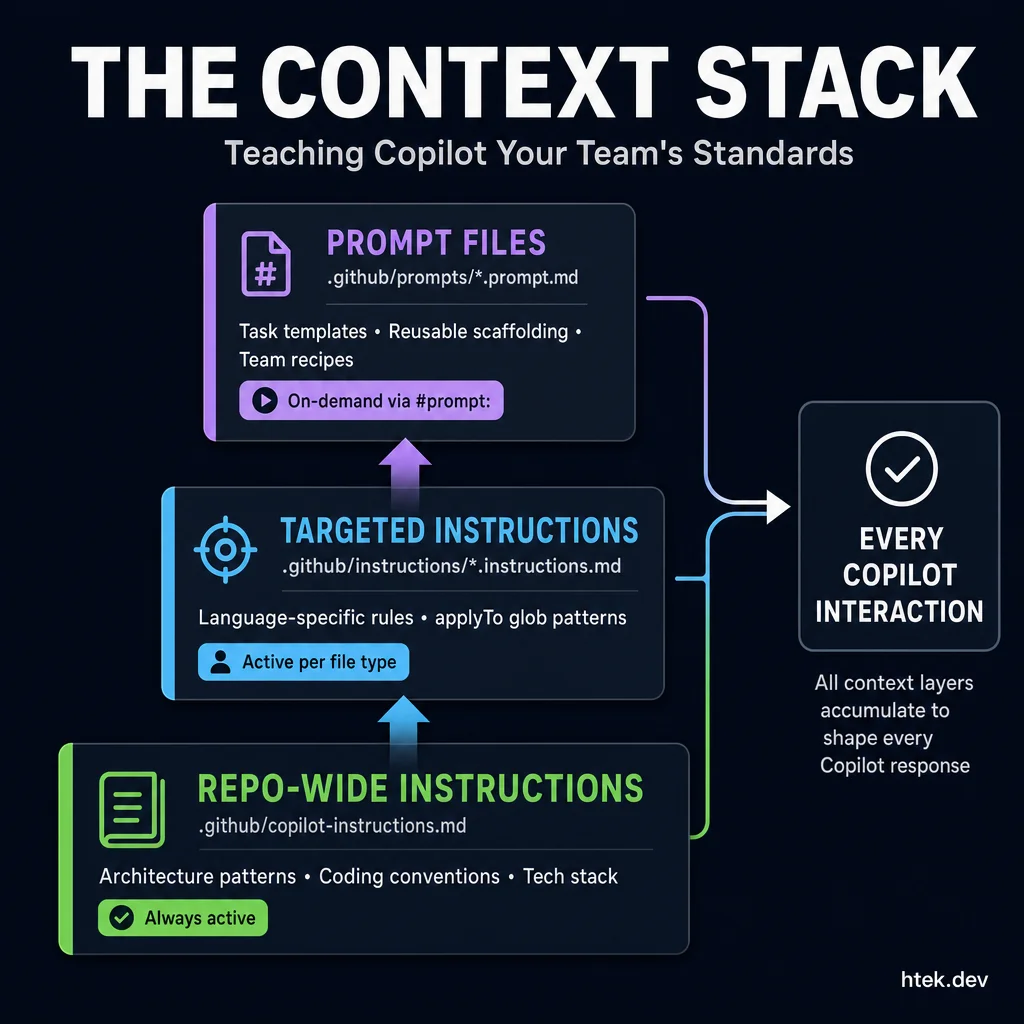 The context stack: three layers of persistent instructions that teach Copilot your team’s standards without repeating yourself.
Repository-Wide Instructions
Create .github/copilot-instructions.md in your repo root:
## Project Conventions
- Use PascalCase for public members, camelCase for private fields
- All public methods require XML doc comments
- Use async/await for I/O; never use async void outside event handlers
- Prefer records for DTOs, sealed classes for services
- Target .NET 9 with nullable reference types enabled
- Use FluentValidation for input validation
- Use Serilog for structured logging
Enable it in Tools > Options > GitHub > Copilot > Copilot Chat → check Enable custom instructions from .github/copilot-instructions.md.
Targeted Instruction Files
For language-specific rules, create .github/instructions/*.instructions.md with applyTo glob patterns:
---
applyTo: "**/*.cs"
description: "C# coding standards"
---
- Add newline before opening curly braces
- Use `using` declarations over `using` blocks
- Prefer pattern matching over type casting
- Wrap disposable resources in using statements
These activate only when you’re working in matching files. Your C# conventions don’t pollute TypeScript suggestions. Check the References dropdown on any response to see which instruction files were applied.
Reusable Prompt Files
For task-specific templates, create .github/prompts/*.prompt.md:
# .github/prompts/new-api-endpoint.prompt.md
Generate a new API controller endpoint with:
- FluentValidation request validator
- MediatR handler with structured Serilog logging
- Unit tests using xUnit + NSubstitute
- OpenAPI attributes for Swagger documentation
- Follow the patterns in #Controllers/OrdersController.cs
Reference in chat with #prompt:new-api-endpoint. Your entire team gets the same high-quality scaffolding, version-controlled in Git. This is the single best way to standardize AI-assisted development across a team.
In my video walkthrough, generating an instruction file was one of the first things I did after scaffolding the solution — it lets Copilot learn everything about the project’s architecture, conventions, and dependencies so every subsequent interaction starts from deep context.
Code Review, Model Selection, and More
Copilot Code Review
Before you commit, click the Review changes with Copilot button (sparkle icon) in the Git Changes window. Copilot examines your uncommitted changes and generates inline review comments — potential bugs, logic issues, missing null checks, thread safety concerns. In VS 2026, you can click a sparkle on any comment to auto-apply the suggested fix.
Enable it: Tools > Options > Preview Features > Pull Request Comments + Tools > Options > GitHub > Copilot > Source Control Integration > Enable Git preview features.
Model Selection and BYOM
The model picker dropdown in the chat prompt area lets you switch between models: GPT-4.1 (default), GPT-5, Claude Sonnet 4, Claude Opus 4, Gemini 2.5 Pro, and more. Different models have different strengths — Claude excels at reasoning-heavy tasks, GPT-5 is strong for code generation, Gemini is fast for quick questions.
You can also Bring Your Own Model (BYOM) by providing API keys from OpenAI, Anthropic, or Google. This is chat-only and isn’t available for Business/Enterprise subscriptions, but for individual developers experimenting with different models, it’s powerful.
Documentation Generation
Type /// above any C# method and Copilot generates a complete XML doc comment — <summary>, <param>, <returns> — based on the actual method logic, not just parameter names. It’s the fastest path to documented code I’ve found.
Patterns That Maximize Your Output
These are the workflows that give me the highest return after months of daily use:
“If your solution breaks when you make changes, how many times do you think it’s going to break when AI makes changes? Just think about that.”
-
Comment-first development — Write intent as a comment, let completions generate the implementation. Faster than writing from scratch, produces more readable code because the comment stays.
-
Refactor with agent mode — “Extract this into a service class with dependency injection and add unit tests.” Review the multi-file diff. What took 30 minutes now takes 5.
-
NES for rename cascades — Rename once, Tab through every reference. Don’t touch Find & Replace for semantic renames ever again.
-
Code review before commit — Hit the sparkle button in Git Changes before every commit. Copilot catches off-by-one errors, missing null checks, and
async voidmistakes that eyes skip. As research shows, this makes the work more satisfying, not just faster. -
Prompt files for team standards — Encode architecture patterns into
.prompt.mdfiles. A junior developer referencing#prompt:new-api-endpointproduces the same quality scaffolding as a staff engineer. -
Custom instructions to eliminate repetition — If you’ve typed the same coding standard into chat three times, it belongs in
copilot-instructions.md. -
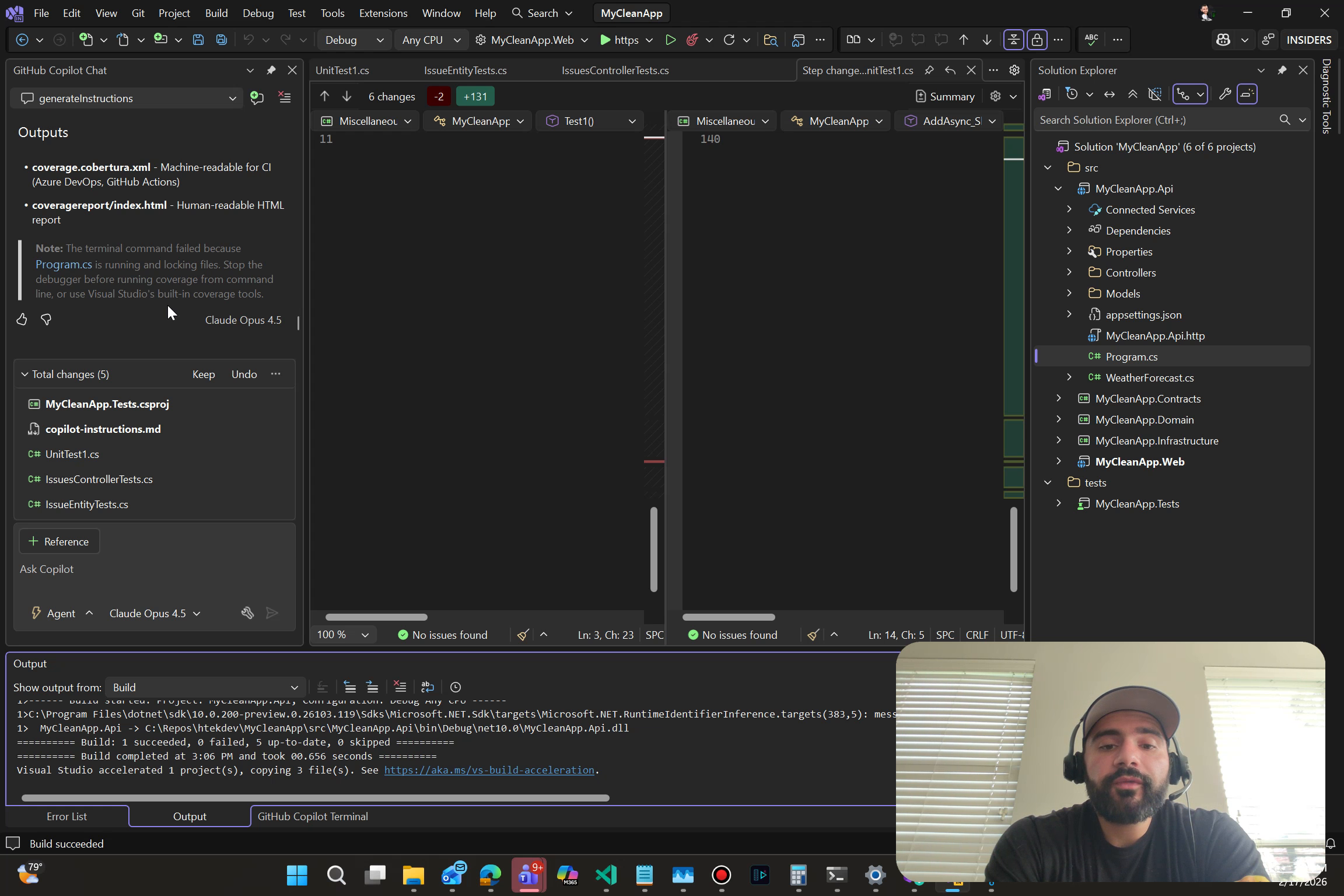
Test coverage as an AI-readiness gate — This one doesn’t get talked about enough. If a junior developer can break your production system, that’s not their fault — it’s your process’s fault. The same applies to AI. Unit tests are the minimum, but end-to-end tests with proper coverage reporting are the “magical land” of confidence. Use AI to get to a robust codebase, not just to work within one.
“If you can give this repo to your grandma and tell her to make a change, and you feel confident that it’s not going to break anything, then you’re ready for AI.”
Version Reference Card
| Feature | Minimum Version |
|---|---|
| Inline Completions | VS 2022 17.8+ |
| Next Edit Suggestions | VS 2022 17.14+ |
| Chat (Ask Mode) | VS 2022 17.10+ |
| Agent Mode | VS 2022 17.14+ (GA) |
| MCP Servers | VS 2022 17.14+ |
| Custom Instructions | VS 2022 17.10+ |
| Prompt Files | VS 2022 17.14+ |
| Code Review | VS 2022 17.13+ |
| Model Picker + BYOM | VS 2022 17.14+ |
| Cloud Agent | VS 2026 (Preview) |
The Bottom Line
GitHub Copilot in Visual Studio isn’t one feature — it’s a system. Completions, NES, Chat, Agent Mode, MCP, custom instructions, prompt files, code review, and model selection all work together. The developers getting the most from it aren’t using one feature in isolation. They move fluidly: completions for quick edits, NES for refactoring flows, chat for understanding, agent mode for heavy multi-file work, and prompt files to make all of it consistent.
The real productivity multiplier isn’t accepting more autocomplete suggestions. It’s teaching Copilot how your team builds software — through instructions, prompt files, and MCP connections — so every interaction starts from a position of deep context instead of a blank slate. That’s the difference between a tool that generates code and a partner that understands your codebase.